
When you use the Brightcove APIs, your method calls will require access tokens unless you enable basic authentication in the Player Service Settings.
Creating client registrations
The API Authentication page displays a Clients (Applications) list where you can create and manage client registrations. When creating registrations, you can select the service and the roles that will be enabled with the registration.
To create a new client registration for your account:
- Open the Admin module from the left navigation.
- Click API Authentication. The API Authentication page opens, displaying your current client registrations.
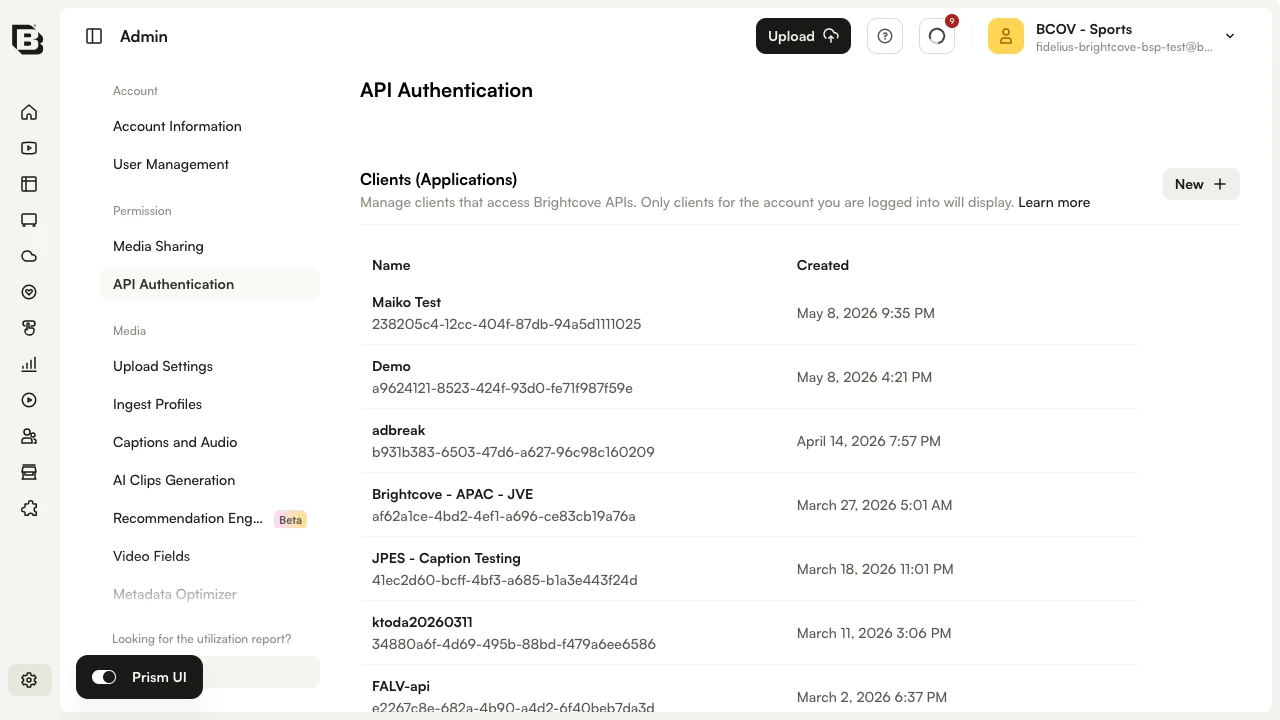
- Click New.
- Enter a Name and Description for the client registration.
- Select one or more of your accounts for authorization.
- Select the API(s) and permission(s) to enable for this registration.
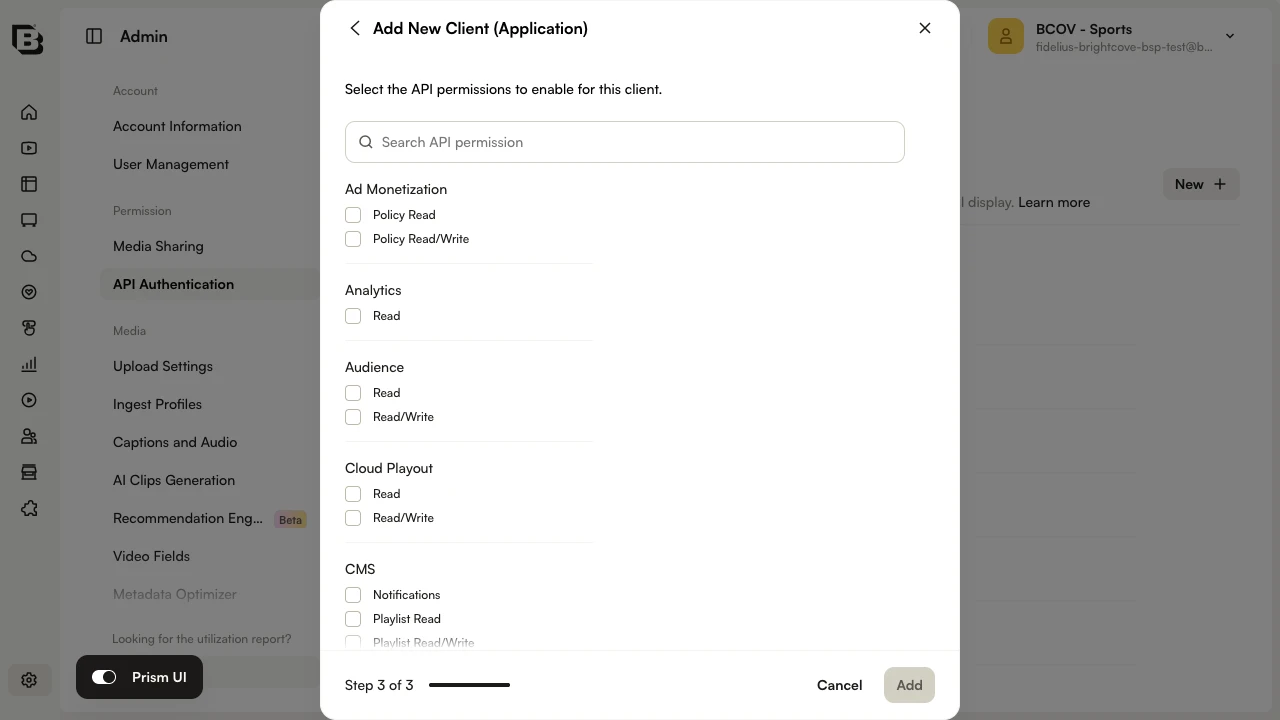
- Click Add.
- A Client ID and Client Secret will be returned.
Managing client registrations
The API Authentication page can be used to view and manage client registrations. Open the Admin module from the left navigation and click API Authentication. The Clients (Applications) list displays your current registrations.
To manage a registration, click the three-dot menu on the row and select Edit or Delete.
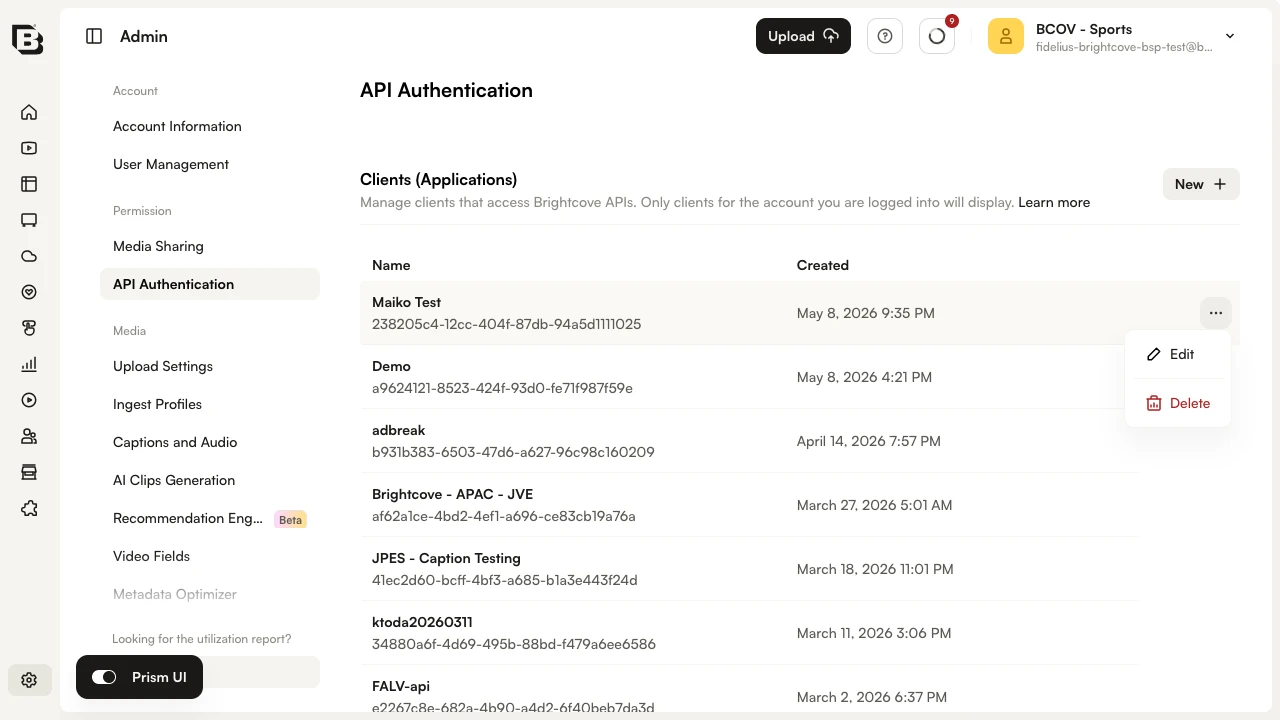
When editing, you can:
- Modify the name
- Copy the client ID
- Add accounts for authorization
- Select additional APIs to enable
Click Save to save your changes.
Note that if a credential is created for multiple accounts, users will only see that credential if they have access to all of those accounts. For example, User 1 creates a credential for accounts A & B. User 2 logs in and only has access to account A. User 2 will not see the credential as they do not have access to account B.
Updating client registrations
Although you cannot retrieve the client secret for existing credentials, you can click the three-dot menu on a registration and select Edit to add or remove both permissions and accounts.
Deleting client registrations
To delete a client registration, click the three-dot menu on the row and select Delete. Deleting a registration permanently disables it and cannot be undone.
Working with GAM
If you currently have multiple accounts set up as content sources in GAM, you have two options:
- You can create a unique Client ID and Client Secret for each account that’s set up as a content source in GAM. For example, if you have 10 accounts, you'd have 10 applications named GAM in your API Authentication settings in .
- You can create a single Client ID and Client Secret for all accounts that have been set up as content sources in GAM. For example, if you have 10 accounts, you'd have 1 application named GAM in your API Authentication settings in .
Regardless of whether you chose option #1 or #2, for each content source that you set up in GAM, you need to provide a unique Account ID. So, you are not reducing the number of content sources that are currently set up in GAM; you're just replacing the read token with the Client ID and Client Secret, which can either be the same across content sources or unique for each.
Option #1 takes more time up front. However, if the Client ID and Client Secret are the same across all content sources (as with option #2), it will be a burden to add a new content source because you will need to generate a new Client ID and Client Secret and update all of content sources in GAM. So, Brightcove recommends option #1.